
Mobile NFC Burner apps for the second-generation single-profile Token2 programmable tokens
Compatibility
Our NFC Burner app is compatible with a wide variety of Android smartphones and tablets, from flagship devices to more budget-friendly options. The iOS NFC Burner app is compatible with all iPhone models starting from the iPhone 7. We have tested and optimized NFC Burner on devices from various manufacturers. If you happen to run into any compatibility issues, please do not hesitate to let us know. We value user feedback and are dedicated to resolving any concerns promptly to enhance your experience.
The app has been completely redesigned around a simple step-by-step wizard that walks you through programming a token from start to finish. The Android app is now open source. Key changes from previous versions:
- A guided flow (Add secret → Confirm → Power on → Tap → Done) replaces the old single-form screen.
- TOTP parameters (algorithm, time step, display timeout) are now reviewed and edited on the Confirm screen, rather than on a separate settings page.
- Clear, plain-language guidance detects when the wrong QR code is scanned (for example a token serial number, a website link, or a Microsoft/Google export) and tells you what to do instead.
- Dedicated Identify, Time sync, and Expert tools are available from the welcome screen.
About the app
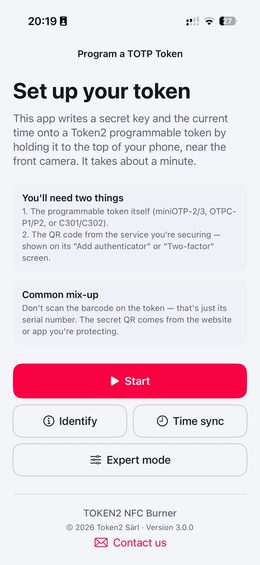
This is a simple yet powerful NFC Burner app that provides full control over your programmable tokens. In addition to burning seeds, the app also lets you configure advanced settings such as the hash algorithm (SHA-1 or SHA-256), the time step (30 seconds or 60 seconds), the display power-off timeout (from 15 seconds to 120 seconds), and time synchronization. For everyday use you will only need the main wizard; the advanced tools are there when you need them.
Burning a seed
Burning a seed onto a token is done through the guided wizard. This is the only flow you will use in 99% of cases. Start the app and tap Start to begin.
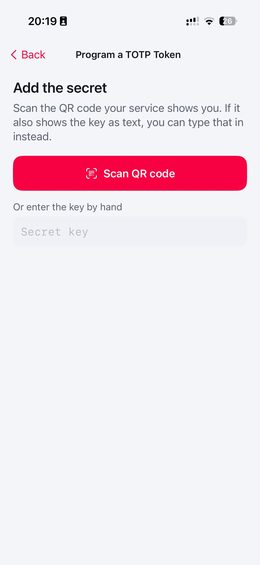
Step 1 — Add the secret
- Tap Scan QR code and point the camera at the TOTP QR code shown by the service you are securing.
- If you need to enter the secret by hand instead, type or paste it into the secret field. The app automatically recognizes both Base32 and hexadecimal secrets, as well as full
otpauth://links — there is no longer a separate mode to choose. - If you accidentally scan the wrong code (such as the barcode printed on the token, which is only its serial number), the app explains the problem and points you to the correct QR code.
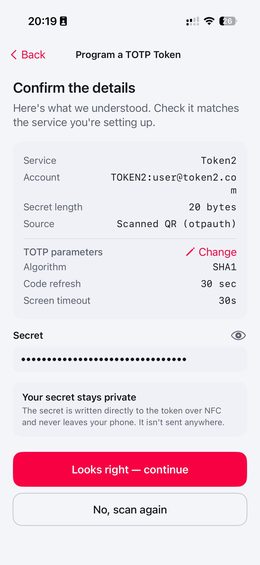
Step 2 — Confirm the details
- Review what was captured: the service and account (when available), the secret length, and the TOTP parameters.
- To adjust parameters, tap Change. Here you can set the time step (30 or 60 seconds), the hashing algorithm (SHA-1 or SHA-256), and the display power-off timeout (15 to 120 seconds). These should match the settings defined by your authentication service. If you are unsure, leave the defaults of 30 seconds and SHA-1, as most TOTP authentication is hardcoded to these values. The display power-off timeout does not affect OTP calculation, so you can choose any value you prefer.
- The secret is written directly to the token over NFC and never leaves your device.
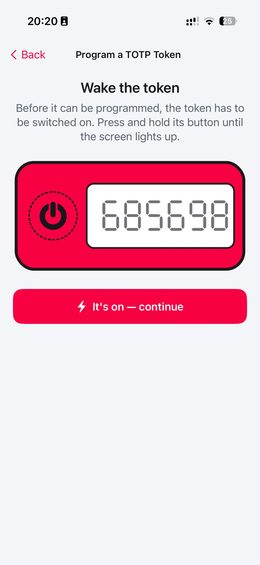
Step 3 — Power on the token
Press and hold the token's button until its screen lights up, then continue.
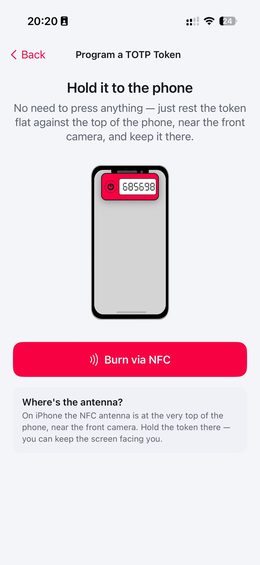
Step 4 — Hold the token to the phone
Rest the powered-on token flat against the NFC area of your phone. When the write completes, a confirmation is shown along with a live verification code you can compare against the token's own screen.
- Android: NFC scans continuously in the background. Simply hold the powered-on token against the NFC area of your device and the write begins automatically once the token is detected.
- iPhone: You must first start the scan by tapping the Burn via NFC button, which brings up the system NFC dialog. Once the dialog appears, hold the powered-on token against the NFC area — on iPhone this is near the top of the device, close to the front camera.
Programming a second token (cloning)
On the final screen you can choose Program another (clone) to write the same secret and settings to another token — useful for creating a backup. The wizard keeps your current secret and configuration and jumps straight back to the tap step.
Token settings (Time sync)
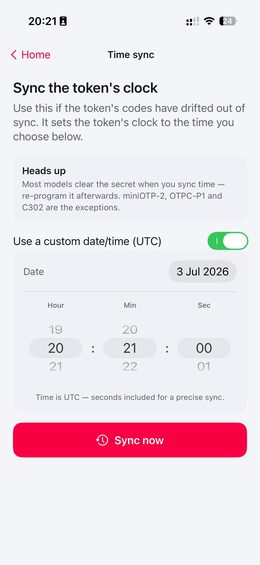
From the welcome screen you can open Time sync to correct a token whose codes have drifted out of step. The app sets the token's clock to the time you choose. Note that it is not possible to read the configuration or seed back from a token — the app can only write to it.
Exercise caution when changing a token's time. On most models, time synchronization deliberately clears the stored seed for security reasons, and you will need to re-program the token afterwards. Only three models keep their seed through a time sync: miniOTP-2, OTPC-P1, and C302. The app detects your model and warns you before making a change that would erase the seed.
Important: the time on the device is displayed and should be set in the UTC timezone (the TOTP algorithm uses UTC only). By default the app uses your phone's current time; you can also enter a specific date and time (including seconds) manually, which is interpreted as UTC.
Identify and Expert tools
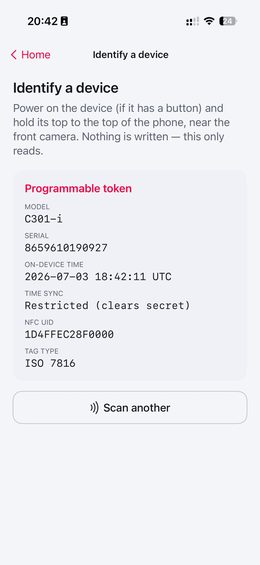
Identify reads a token or other NFC device without writing anything, reporting its model, serial number, on-device time, and whether it has restricted or unrestricted time sync. It also recognizes when you have tapped a FIDO security key rather than a programmable token.
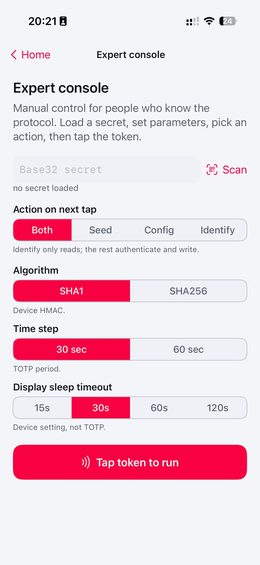
Expert mode gives manual control for advanced users: load a secret, set parameters, and choose exactly which operation to perform on the next tap (write seed and config, seed only, config only, or identify).
You can install the app from Google Play or the Apple App Store using the links below:

|

|
Or download the APK file from the GitHub releases page:
The NFC Burner app is open source. You can review the code, build it yourself, or contribute on GitHub:
About NFC Stability
NFC operates by using electromagnetic fields to enable communication between devices. It works in two modes: active mode and passive mode. In active mode, both devices generate their own electromagnetic fields to communicate. In passive mode, one device generates the electromagnetic field and the other uses that field for communication. Passive NFC devices, such as NFC-programmable TOTP tokens or NFC-enabled security keys, rely on an external electromagnetic field to power the chip and enable communication; they do not generate their own field. All Token2 devices with NFC operate in passive mode. Therefore, the aspects covered in this article are important.
Subscribe to our mailing list
Want to keep up-to-date with the latest Token2 news, projects and events? Join our mailing list!