
Token2 Companion - Rust edition - Keyroost
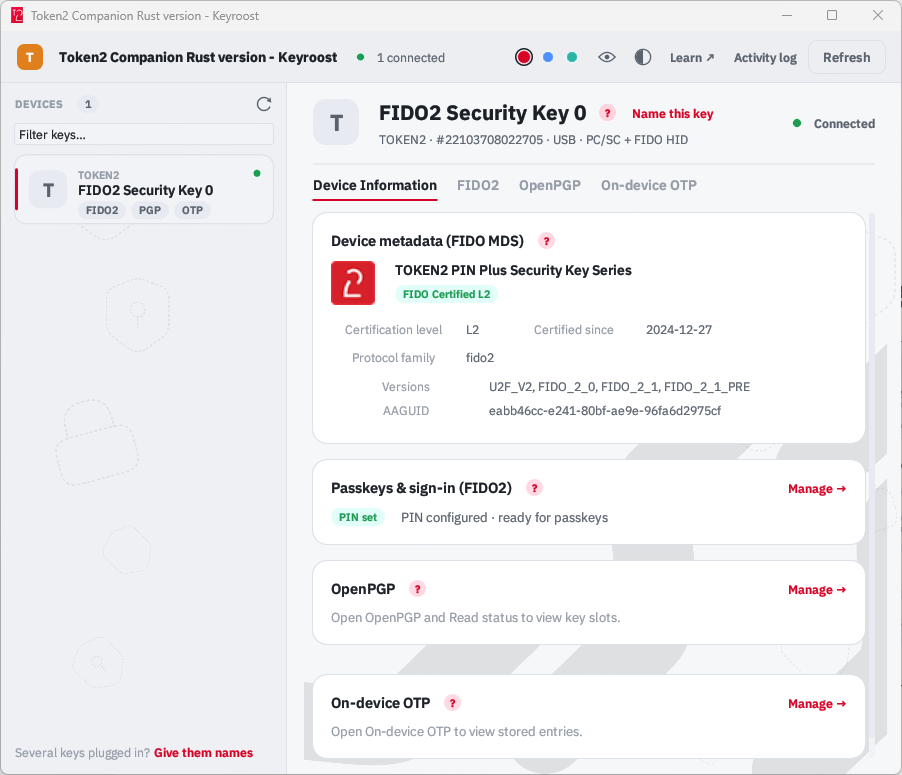
Keyroost is an open-source, cross-platform desktop tool for managing Token2 PIN+ / T2F2 keys and security keys from any vendor. It is an independent, open-source Rust toolchain for hardware security keys that runs natively on Windows, macOS, and Linux - fully open source.
Why this tool exists
The Token2 Companion App manages our FIDO2 keys - OTP, FIDO / passkeys, PIV, and OpenPGP. Keyroost is an open-source sibling to it, built on an existing, auditable key-management engine rather than from scratch, to address two things the original could not: be fully open, and run natively on Linux.
Keyroost adds support for the Token2 on-device OTP applet and the correct Token2 PIN+ defaults. The engine underneath is vendor-neutral, and our Token2-specific additions are part of the same open project, so every key manager built on Keyroost benefits.
What makes it different
Universal - not Token2-only
It manages security keys from any brand, not just Token2 - FIDO2 / passkeys, OATH TOTP/HOTP, OpenPGP, and PIV over the same open standards. Token2 keys gain extra support (the on-device OTP feature and Token2 PIN+ defaults); any other vendor's key still works.
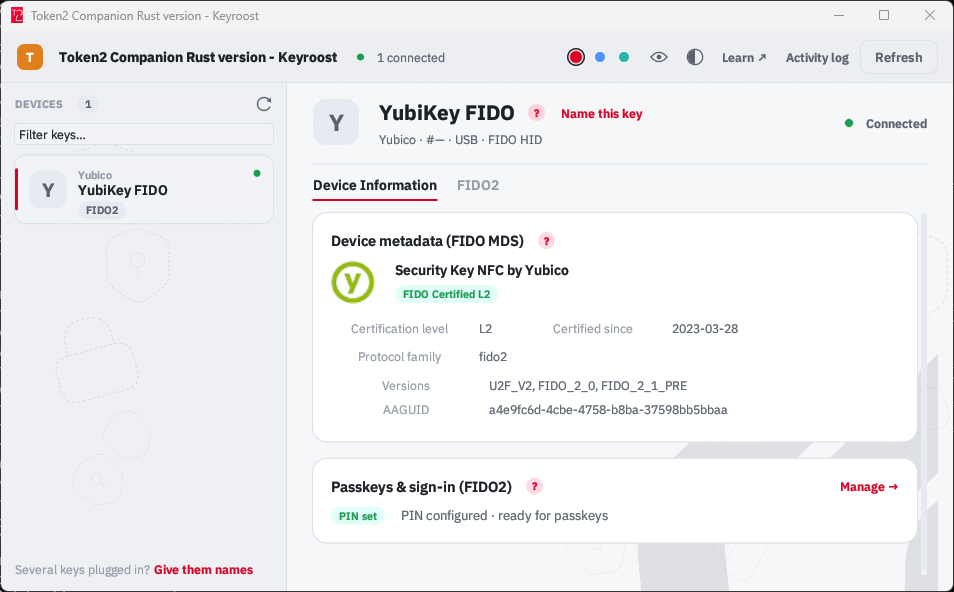
Screenshot: Managing a YubiKey device
Cross-platform - including Linux
A single codebase runs on Windows, macOS, and Linux. A native Linux build of our own Companion App is challenging for us to release, so Keyroost gives our Linux customers a way to manage their keys - with Windows and macOS covered as well.
Fully open source
The entire tool is open source, implemented from public standards with no vendor SDKs, so anyone can read, audit, build, and extend it. It replicates the Token2 Companion App's features, including fingerprint (biometric) management, so every key manager built on the Keyroost engine benefits - not only Token2 users.
Feature parity at a glance
- Device information - serial number, applets present, and connection status.
- Device metadata (FIDO MDS) - on the Overview tab, the key's vendor name and icon, FIDO certification level and date, protocol family, and supported versions, looked up by its AAGUID.
new - On-device OTP - list, add, and delete TOTP / HOTP credentials, with a live countdown for time-based codes and a one-tap Read button for touch-protected entries.
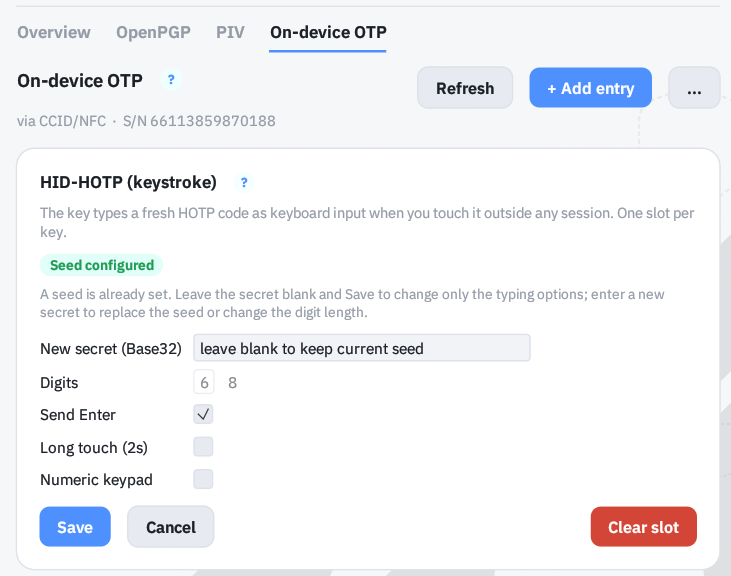
- HID-HOTP (button-press code) - set up the keystroke HOTP slot and change its typing options (Send Enter, long touch, numeric keypad), and enable or disable the keyboard (HID) interface.
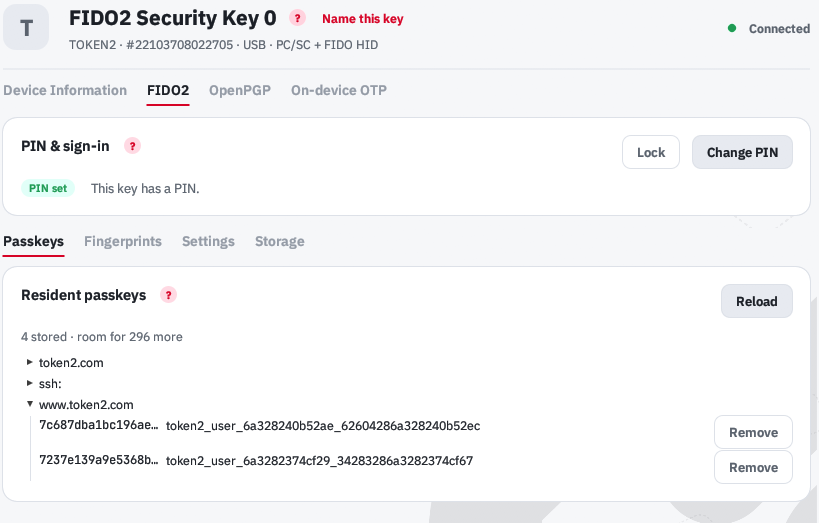
- FIDO2 / passkeys - PIN setup, passkey listing and removal, and device reset. The passkey list now shows full per-credential details (User Name / UPN, Display Name, User ID, Credential ID).
new - Fingerprint management - enroll, rename, and delete fingerprints on biometric keys, from the Passkeys tab.
new - Security policy (FIDO2 settings) - over CTAP 2.1 authenticatorConfig: always-require-verification, a minimum PIN length, a forced PIN change, and enterprise attestation, from the FIDO2 Settings tab.
new - Storage (large blobs) - view the key's large-blob storage as hex and ASCII, and keep your own text notes on the key (add, edit, delete).
new - Scan QR for TOTP - add a TOTP credential by scanning an on-screen QR code; the secret, issuer, hash algorithm, digits, and period are filled in for you. Available when adding OATH and on-device OTP credentials.
new - Friendly key names - give each key a memorable label, stored locally on your computer.
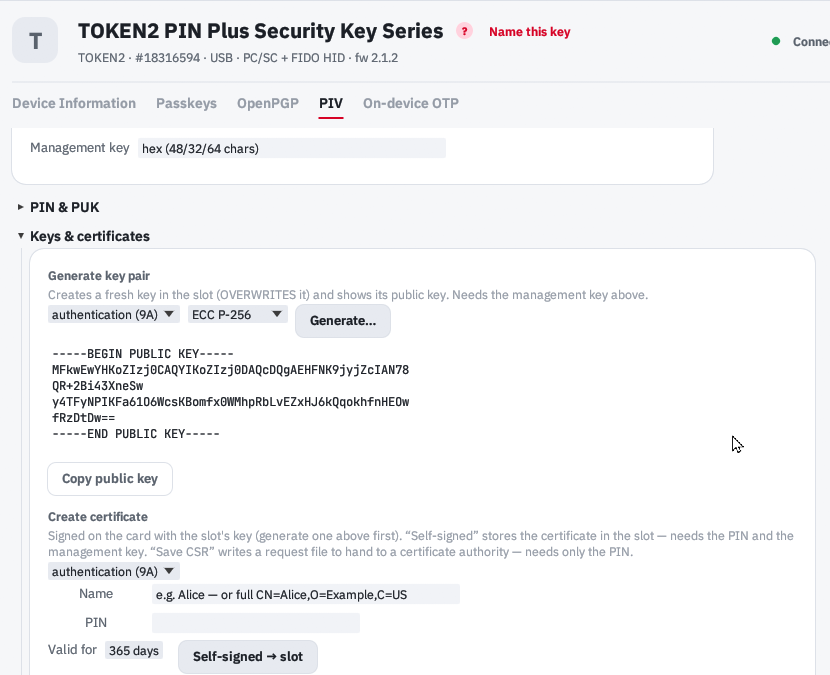
new - PIV - PIN / PUK / management-key operations and certificates, with the correct Token2 PIN+ defaults.
- OpenPGP - on-card signing, encryption, and authentication keys.
- Clearer messages - device errors are explained in plain language; for example, a rejected PIN change on a PIN+ key now tells you the new PIN doesn't meet the key's complexity policy.
new - USB and NFC connection
new- keys are managed over USB, and now over NFC readers too. Management over contact (ISO 7816) readers is not supported yet.
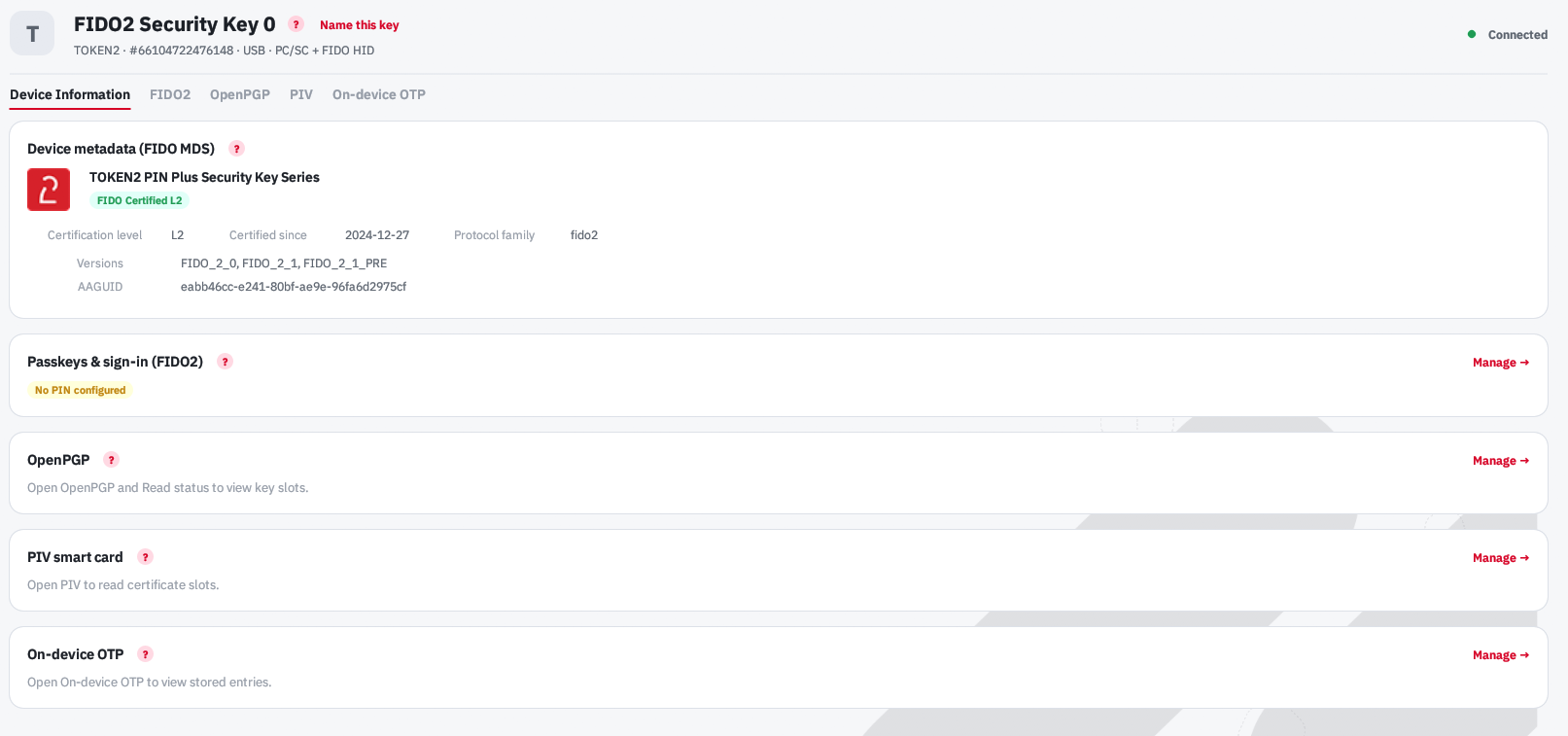 Screenshot: Device overview, showing available applets, device information, and FIDO certification metadata
On-device OTP credentials
Keyroost provides full access to the Token2 on-device OTP applet, letting you add, view, and remove TOTP and HOTP credentials directly on the key. Time-based codes show a countdown ring and refresh automatically; entries that require a touch are revealed with a single Read button.
When adding a credential you can type the Base32 secret, or use Scan QR to read an on-screen TOTP QR code - the secret, issuer, hash algorithm, digits, and period are populated automatically. A show/hide eye button next to the secret field lets you confirm what you've entered before saving.
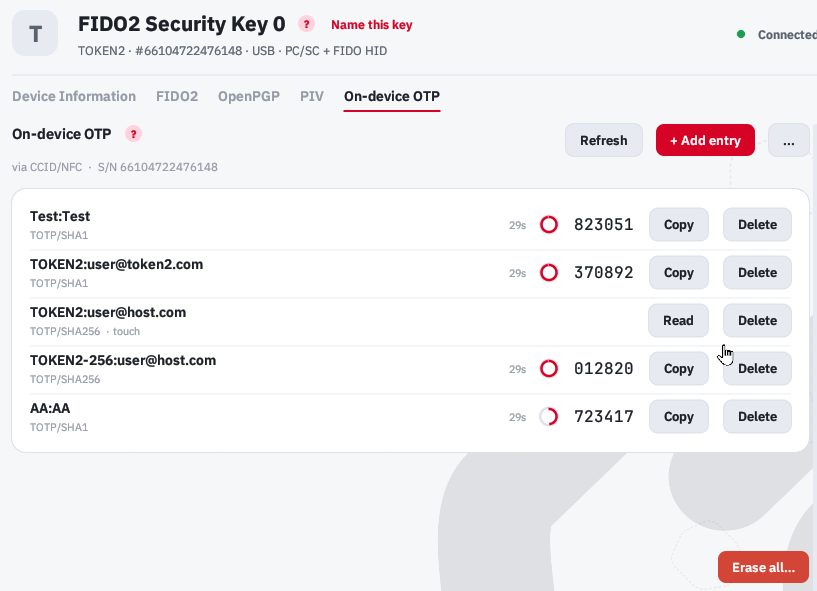
HID-HOTP (button-press keystroke code)
The on-device OTP tab also configures the HID-HOTP slot - the code the key types like a keyboard when you touch it.
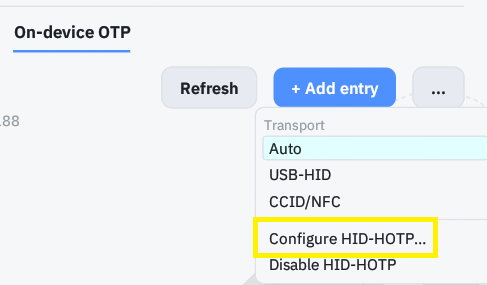
You can set or replace its secret, change the typing options (Send Enter, long touch, numeric keypad) without re-entering the secret, and enable or disable the keyboard (HID) interface from the same place.
FIDO2 / passkeys
Configure the FIDO2 PIN, view resident credentials (passkeys), remove credentials, and reset the FIDO2 application when needed. Each passkey is listed with its full details - User Name (UPN), Display Name, User ID, and Credential ID - so you can identify exactly which account a credential belongs to before removing it.
Fingerprint management
On biometric keys, the Passkeys tab lets you enroll, rename, and delete
fingerprints stored on the key. 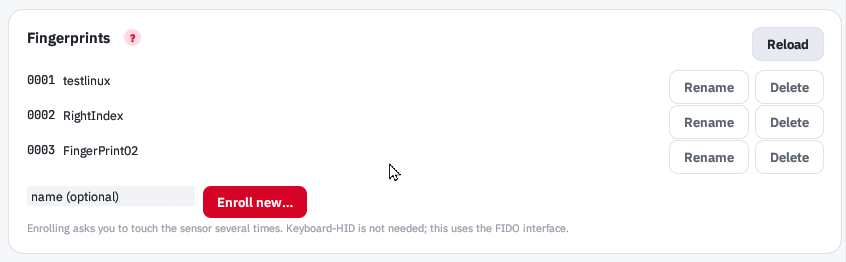
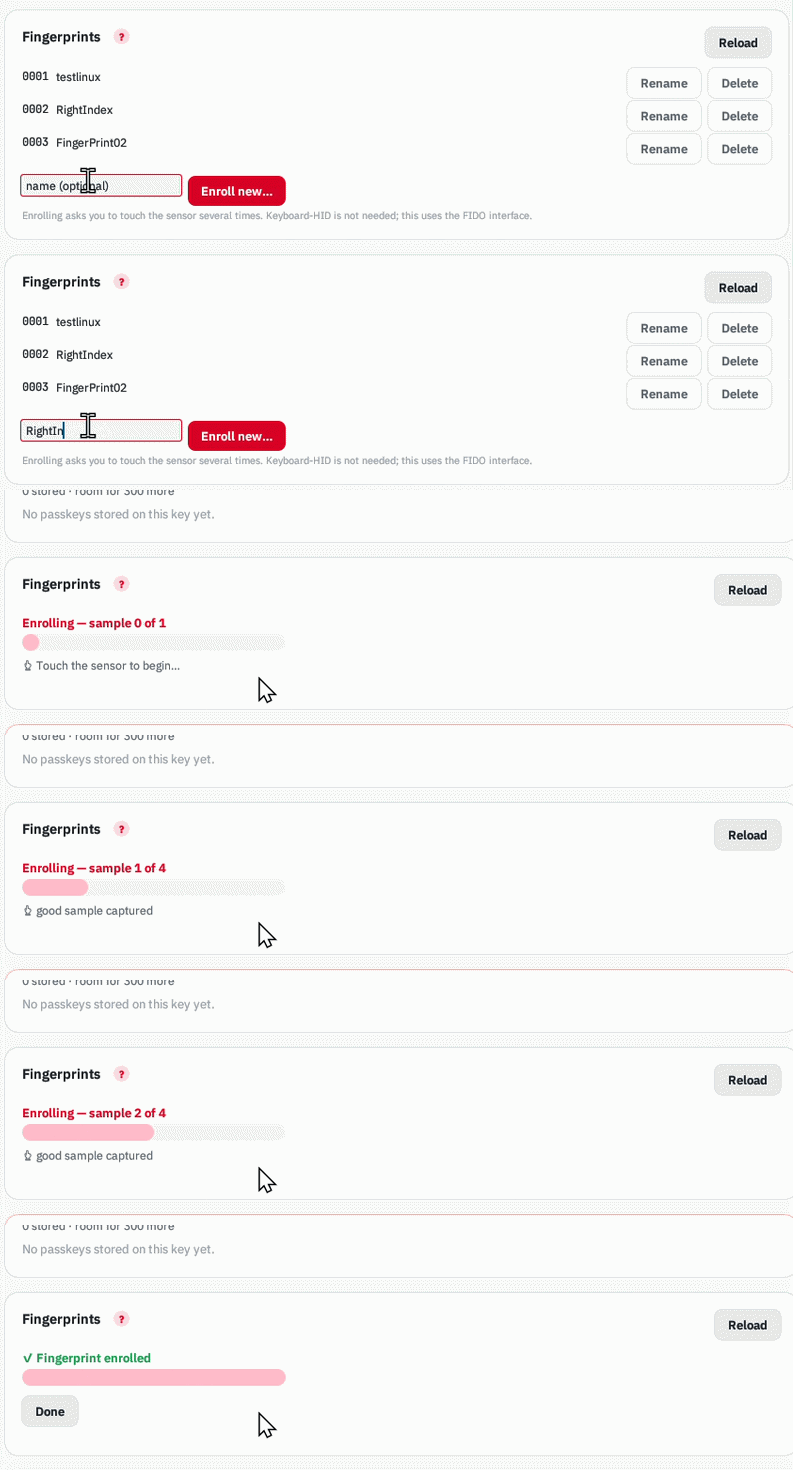
After unlocking with the FIDO2 PIN, follow the
on-screen prompts to capture a fingerprint; enrolled fingerprints can then satisfy user
verification by touch instead of typing the PIN. The fingerprint templates never leave the
key. new
Security policy (FIDO2 settings) new
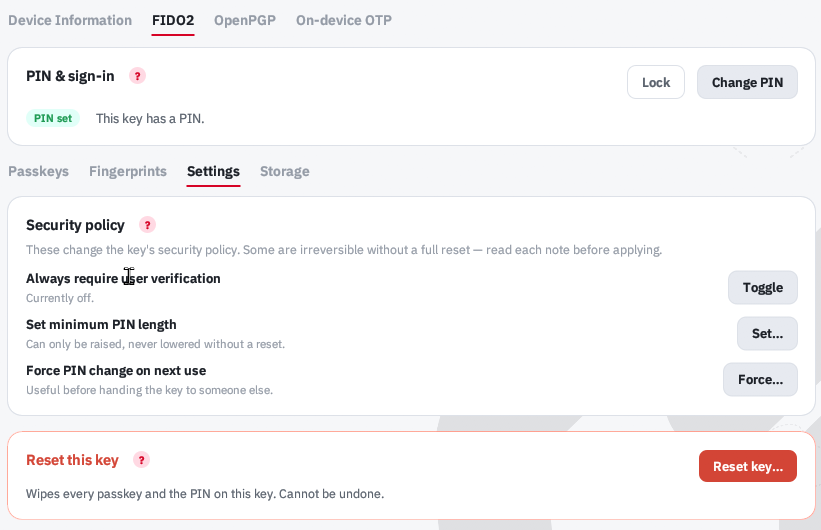
The FIDO2 tab includes a Settings sub-view for the key's security policy, using the standard CTAP 2.1 authenticatorConfig command. After unlocking with the FIDO2 PIN you can:
- Always require user verification - make every assertion need verification (PIN or fingerprint), even for services that did not ask for it.
- Set a minimum PIN length - raise the shortest PIN the key will accept, optionally forcing a new PIN if the current one is now too short.
- Force a PIN change on next use - useful before handing a key to someone else.
- Enable enterprise attestation - on keys that support it, for enterprise registration policies.
Some of these are one-way: a higher minimum PIN length and enterprise attestation cannot be undone without a full reset of the key. The app asks for explicit confirmation before applying those, and explains any rejection in plain language. The Settings tab appears only on keys that report authenticatorConfig support.
Storage (large blobs) new
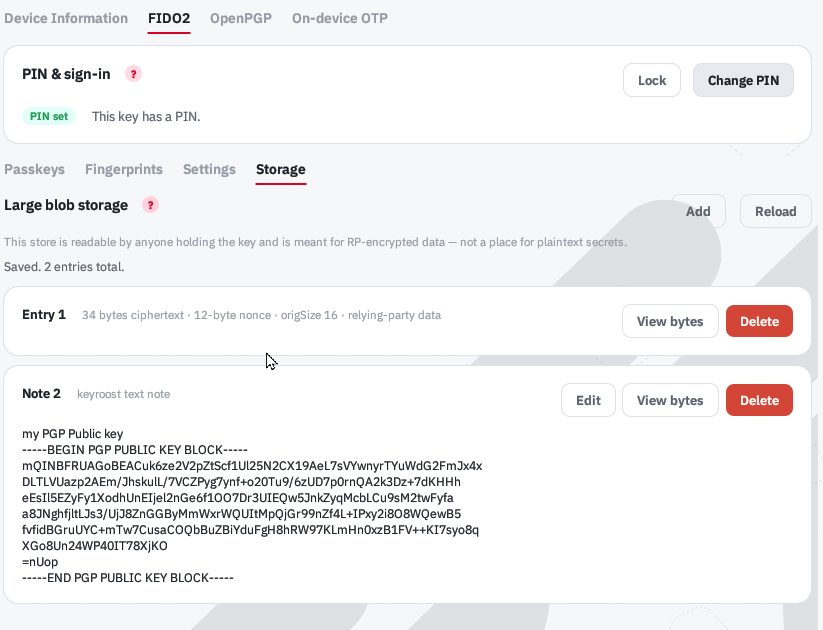
CTAP 2.1 keys can hold a small large-blob store. The FIDO2 tab's Storage sub-view shows what is on the key and lets you keep your own notes there:
- View entries - each stored item is shown as a card, with an optional side-by-side hex + ASCII view of its raw bytes. Entries written by websites (relying parties) are shown read- and delete-only.
- Add, edit, and delete notes - keep your own plain-text notes on the key; they are listed back as readable text and can be edited or removed.
The large-blob store is not encrypted and can be read by anyone holding the key, so it is a convenience scratchpad - not a place for passwords or secrets. The store loads automatically when you open the tab; saving a change requires the FIDO2 PIN. The Storage tab appears only on keys that report large-blob support.
PIV certificates
The PIV section manages PINs, PUKs, management keys, certificates, and key slots using the correct Token2 PIN+ defaults.
OpenPGP keys
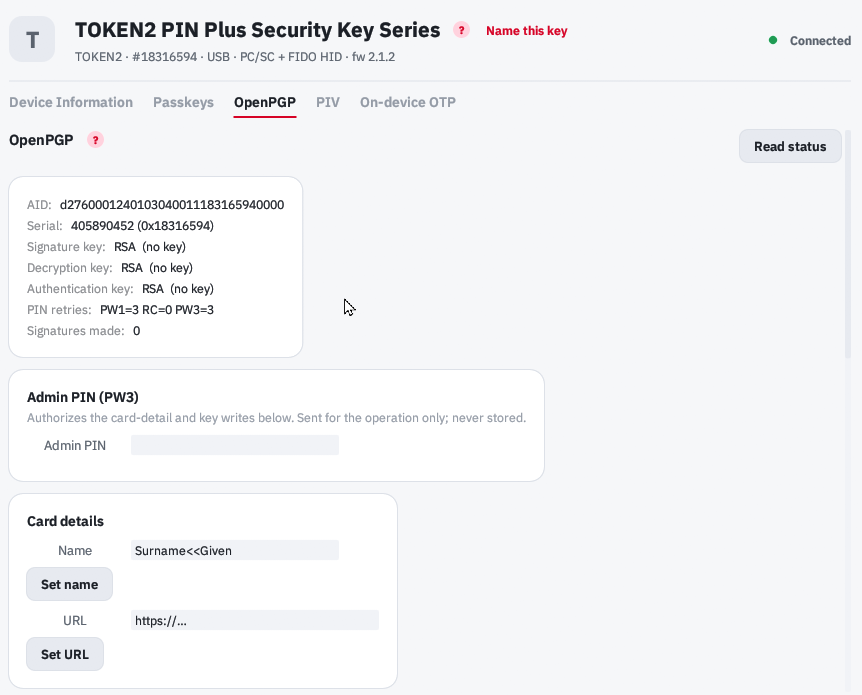
Create, import, and manage OpenPGP keys used for signing, encryption, and authentication directly on the security key.
Linux setup
FIDO2 / passkeys work out of the box. The other features (PIV, OpenPGP, and on-device OTP) use the smart-card channel, which needs a quick one-time setup - our script does it for you.
These features need libccid 1.7.0+ to recognize your key. Stable distros
(Mint, Ubuntu, Debian) ship an older driver, so the setup script registers your key
automatically; on newer systems it simply confirms everything and skips that step.
Download the AppImage and token2-linux-setup.sh (links below), then run:
chmod +x token2-linux-setup.sh
chmod +x Keyroost_*.AppImage
./token2-linux-setup.sh
Unplug and replug your key, then launch the app - all tabs will work.
chmod marks a downloaded file as runnable. No terminal? Right-click each file -> Properties -> Permissions -> tick "Allow executing file as program."
Downloads
Note: Keyroost releases are currently not EV Code Signed.
For this reason, we also provide Token2-signed builds hosted separately on our website.
This applies to Windows (.exe) and macOS (.pkg) releases.
Windows (code-signed build):
Download 0.7.6 Windows signed release
macOS (code-signed build):
Download 0.7.6 macOS signed release
We aim to keep these signed releases updated in a timely manner, but please note that
the process is currently manual.
Frequently Asked Questions
What is Keyroost, and how does it relate to the Token2 Companion App?
Keyroost is the open-source engine we actively develop and maintain. It provides the same key-management functionality as our proprietary Token2 Companion App - there is no hidden difference in the code. Think of Keyroost as the Linux (and cross-platform) counterpart to that app: fully open, auditable, and available on Windows, macOS, and Linux. Only the logos, branding, and code-signed executables stay exclusive to the proprietary Companion App.
Is Keyroost a full tool, or a stripped-down version?
It is a full tool. Alongside substantial vendor-neutral FIDO2/PIV/PGP functionality, Keyroost adds Token2-specific touches (the on-device OTP applet support and correct Token2 PIN+ defaults), all in the same open project so every key manager built on Keyroost benefits.
How does this differ from the proprietary Token2 Companion App?
The differences are minor and mostly platform-related:
- FIDO PIN changes on Windows. With the proprietary Windows app you can
change the FIDO2 PIN without administrator rights; with Keyroost, admin rights are
needed. In practice this is rarely an issue - non-admin users can change the FIDO PIN
through Windows System Settings / Control Panel instead.
- OTP applet coverage. The proprietary app only shows Token2's
on-device OTP applet. Keyroost can manage the broader OATH applet as well, so it also
works with keys from other vendors (such as YubiKey and pico-keys).
- Programmable tokens. Keyroost includes tools to manage Token2
programmable tokens like Molto2 and the C301i family, letting you use one app across
different device types.
Does it work with non-Token2 keys?
Yes. It manages security keys from any vendor over open standards - FIDO2 / passkeys,
OATH TOTP/HOTP, OpenPGP, and PIV. Token2 keys gain extra support (on-device OTP and PIN+
defaults), but any other vendor's key still works.
Which platforms are supported?
A single codebase runs on
Windows,
macOS, and
Linux. The Linux support exists
specifically because a native Linux build of our proprietary Companion App is difficult for
us to release, so Keyroost gives Linux customers a supported way to manage their keys - with
Windows and macOS covered too.
Do I need to do anything special on Linux?
FIDO2 / passkeys work out of the box. The smart-card features (PIV, OpenPGP, and
on-device OTP) need a quick one-time setup, which the included
token2-linux-setup.sh script handles for you. On older stable distributions it
registers your key automatically; on newer systems it simply confirms everything and skips
that step.
Is it really open source? Can I audit it?
Yes. The entire tool is open source, implemented from public standards with no vendor
SDKs, so anyone can read, audit, build, and extend it.
Will my fingerprints leave the device?
No. On biometric keys, fingerprint templates are enrolled and stored on the key itself
and never leave it. Once enrolled, a fingerprint can satisfy user verification by touch
instead of typing the FIDO2 PIN.
What is the largeBlobs storage actually for?
largeBlobs storage is a small data area defined by the CTAP 2.1 standard that lives on the key. Its main purpose is to let relying parties (websites and apps) store a little extra data associated with a passkey - most commonly to support newer sign-in flows. For example, it can hold the per-credential information needed for hybrid/PRF and "passkey + SSH" scenarios, so a service can keep that data on the key alongside the credential rather than on a server. In Keyroost, the Storage tab lets you view those entries and also keep your own plain-text notes on the key, but this is in no way its primary use.
The large-blob store is not encrypted and can be read by
anyone holding the key, so it is a convenience scratchpad - not a place for passwords or
secrets.
How do I report issues or bugs in Keyroost?
All issues and bug reports should be submitted via the Keyroost GitHub Issues section. This ensures proper tracking and visibility for the development team.
We are automatically notified of all new issues and will review them as soon as possible.
If you want to draw our attention to a specific report, you can also mention us directly using
@token2 in your issue.
Subscribe to our mailing list
Want to keep up-to-date with the latest Token2 news, projects and events? Join our mailing list!